Help Center
User Manual
Item Guide
Tap on the '+' button at the bottom right of the screen and select the target file from the file selection screen.

The types of files you can add differ depending on the tab selected at the bottom of the screen.
For YouTube, you may search and select the desired video. For recording, tapping on the '+' button will bring you to the Recording Screen.
Tap an item to open the player screen. For detailed controls, see the player's User Manual guide.
Long-press an item to display the menu. Select 'Add to Playlist' and tap on the target playlist.
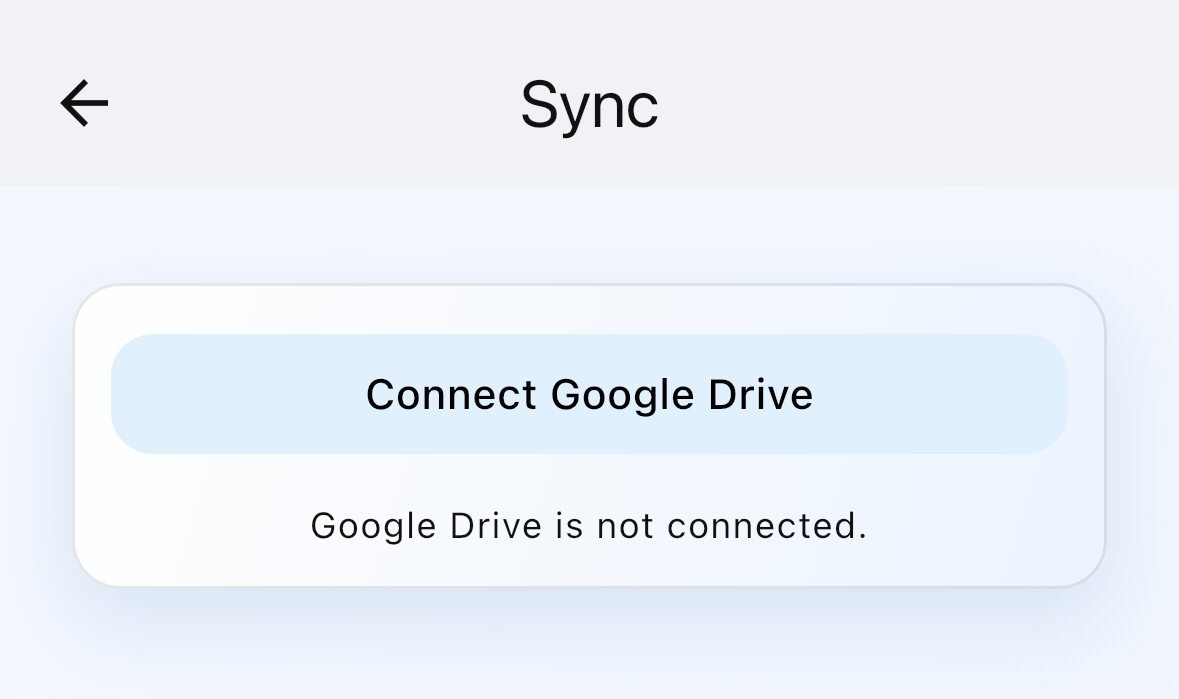
To sync, go to 'Settings', tap on 'Sync', and connect via 'Connect Google Drive'.
Once connected to Google Drive, long-press the item you want to sync and select 'Upload' from the menu to sync it.
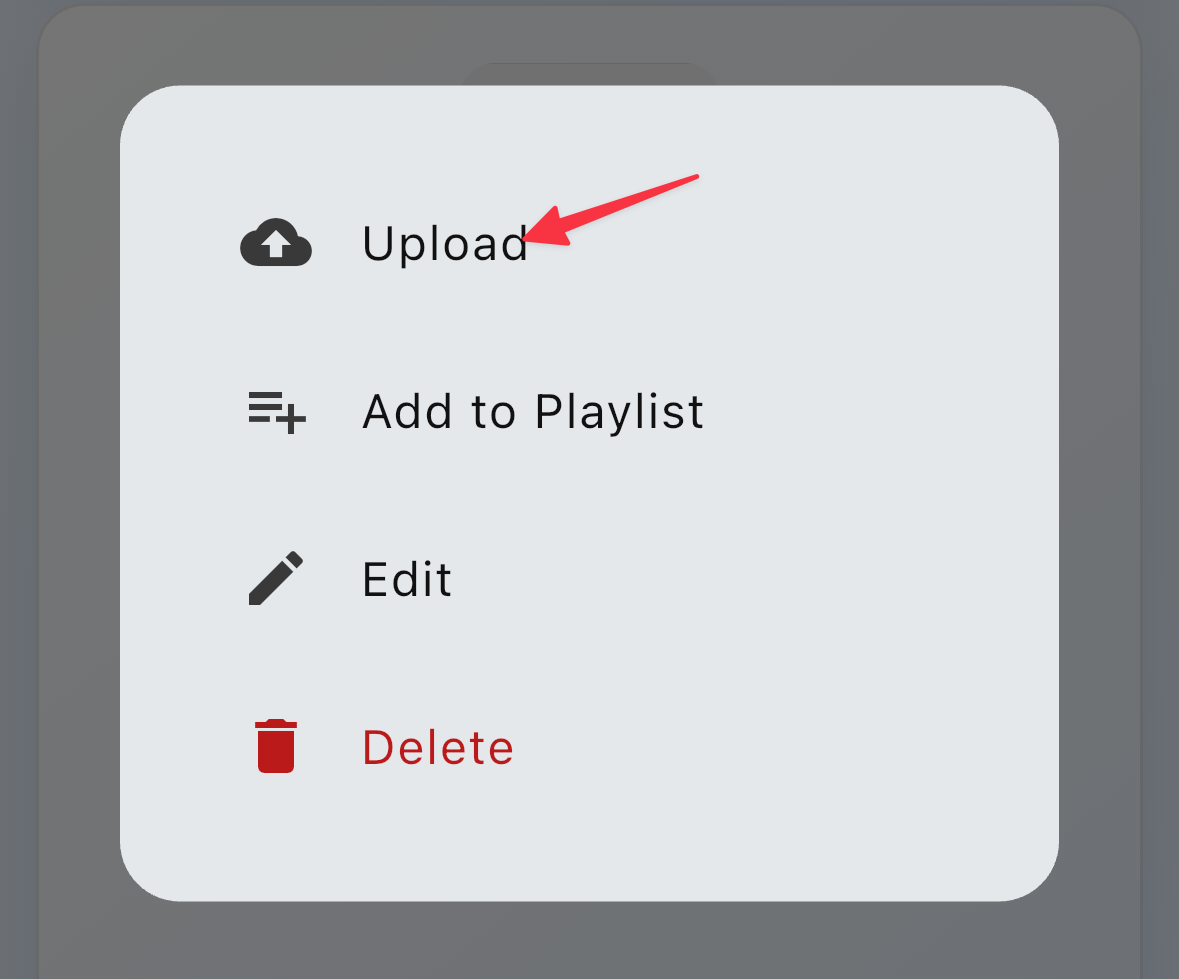
To download an item synced on another device, select 'Download'.
Long-press an item and select 'Edit Item' from the menu to edit the title and other information.
Long-press an item and select 'Delete' from the menu. This cannot be undone. However, the pratice data for that item will still be available in the Reports Screen.
Player Controls
On the Player Screen, you can play items. Tap on the play button to start playback.
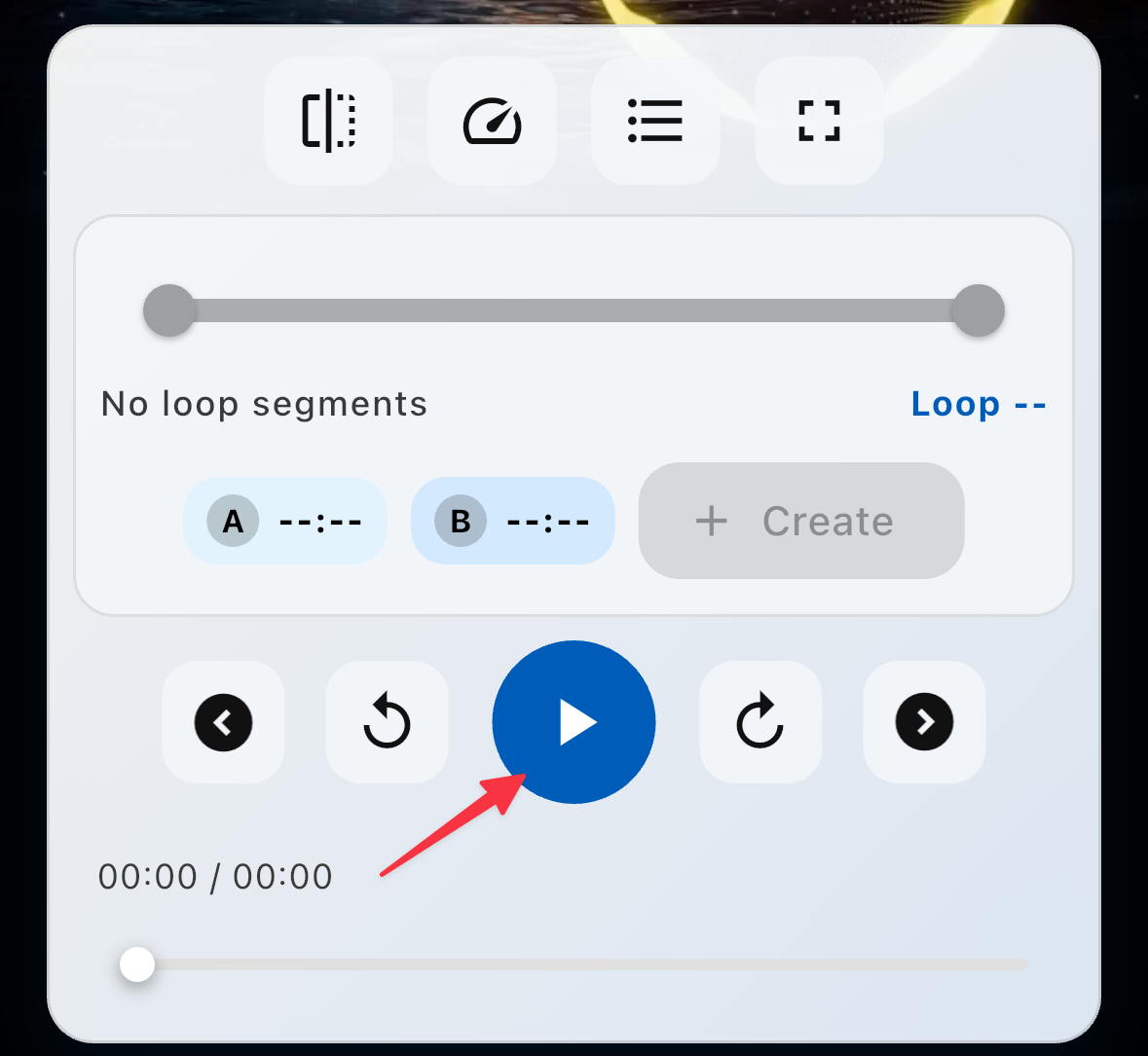
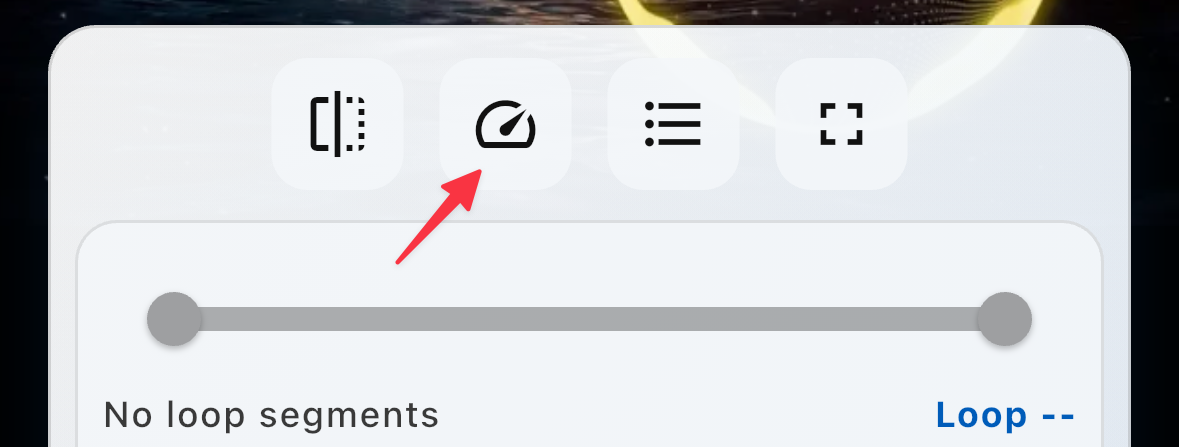
To change the playback speed, tap on the speed button to display the speed options. The option with a checkmark is the current speed.
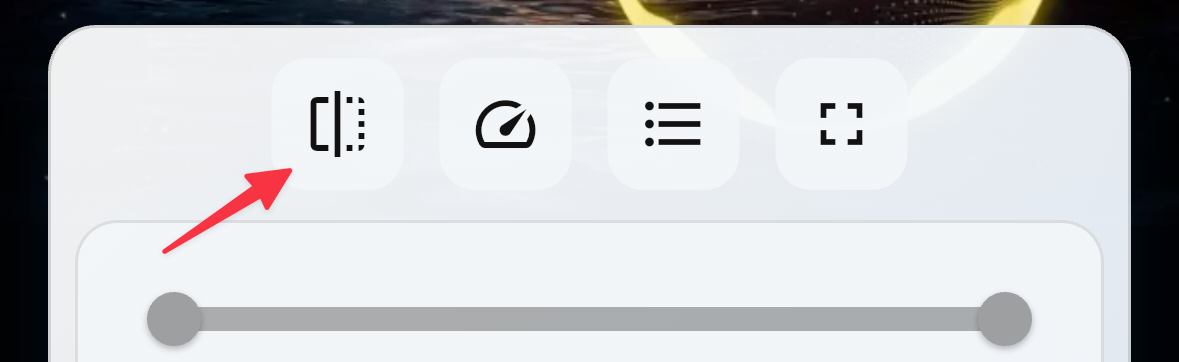
Tap on the flip button to mirror the screen horizontally.
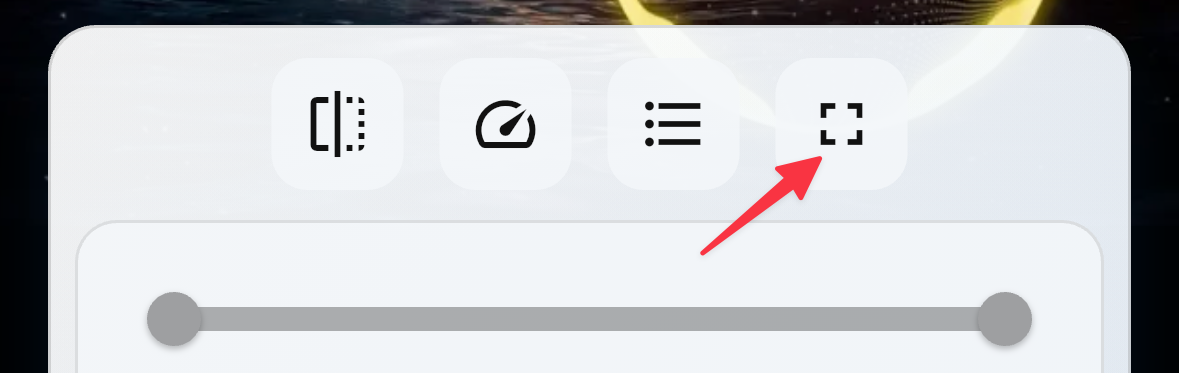
Tap on the rotate button to switch the screen from portrait to landscape.
Tap on the fast forward/rewind button to move the playback position.
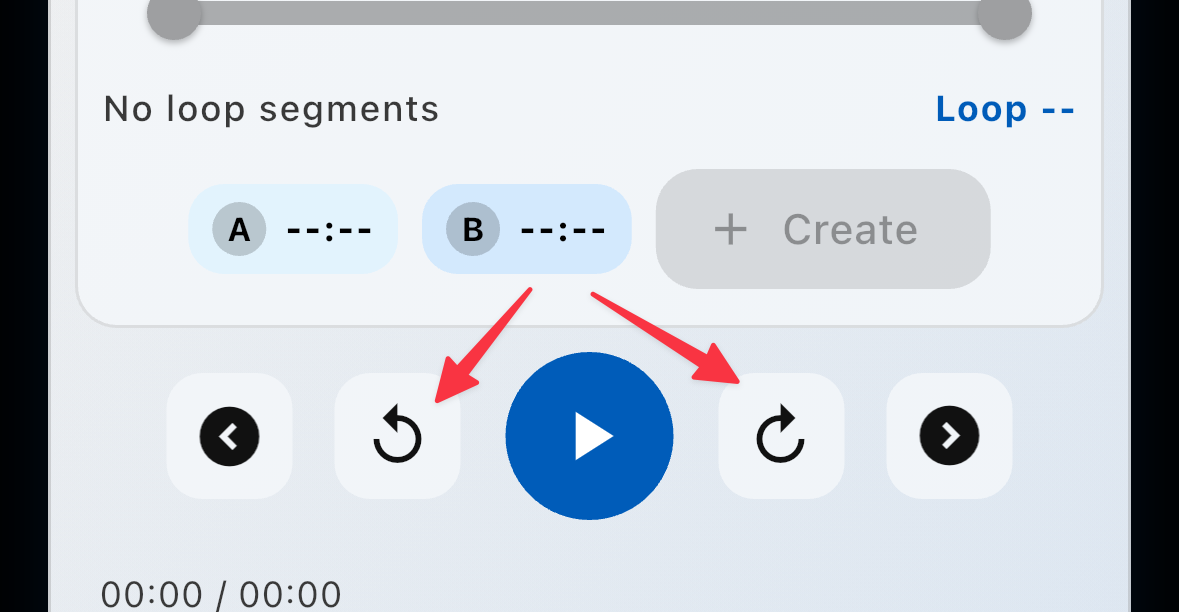
The number of seconds can be set individually for each item from the player screen. If the individual setting is not specified, the value in 'Player Global Settings' under 'Settings' will apply.
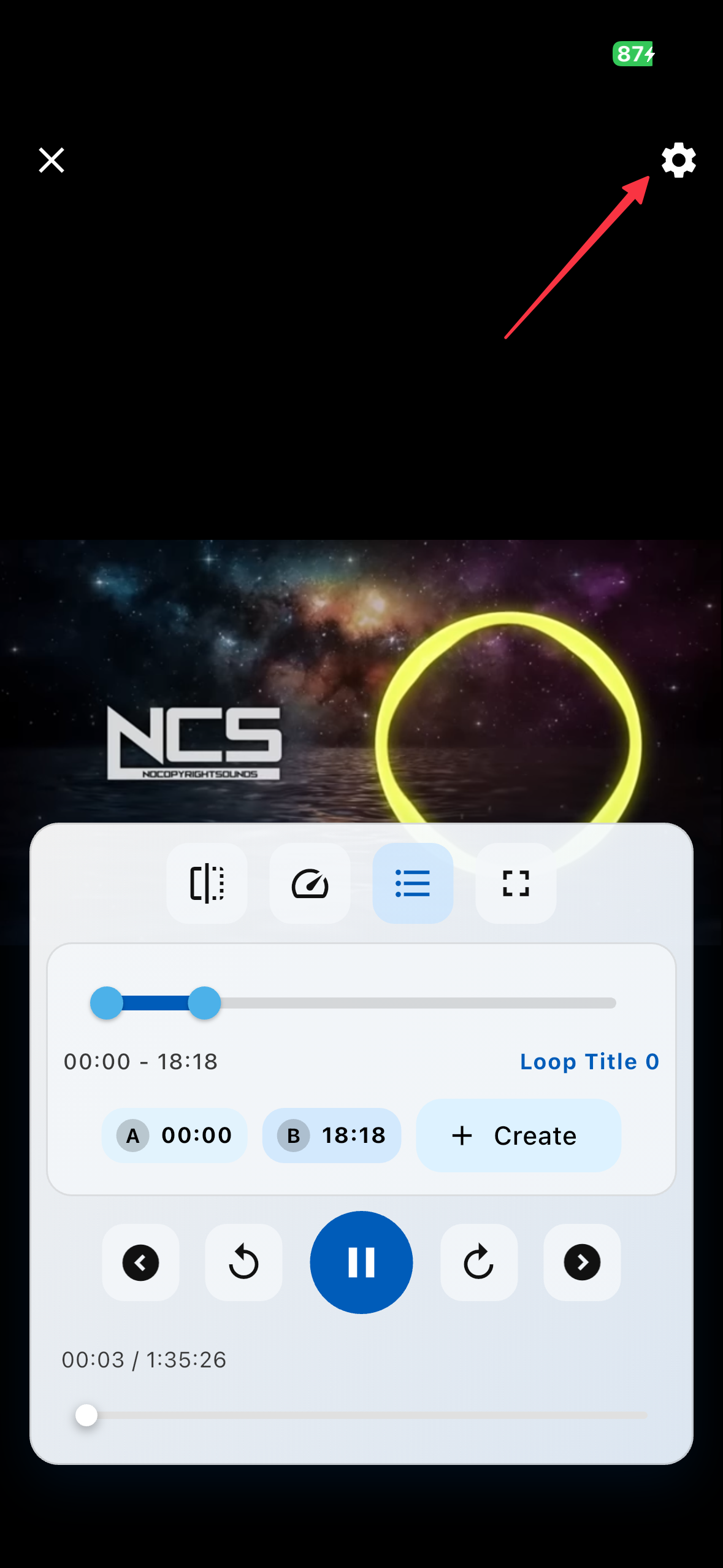
To move the playback position, tap on the desired position on the seek bar or swipe it left or right.
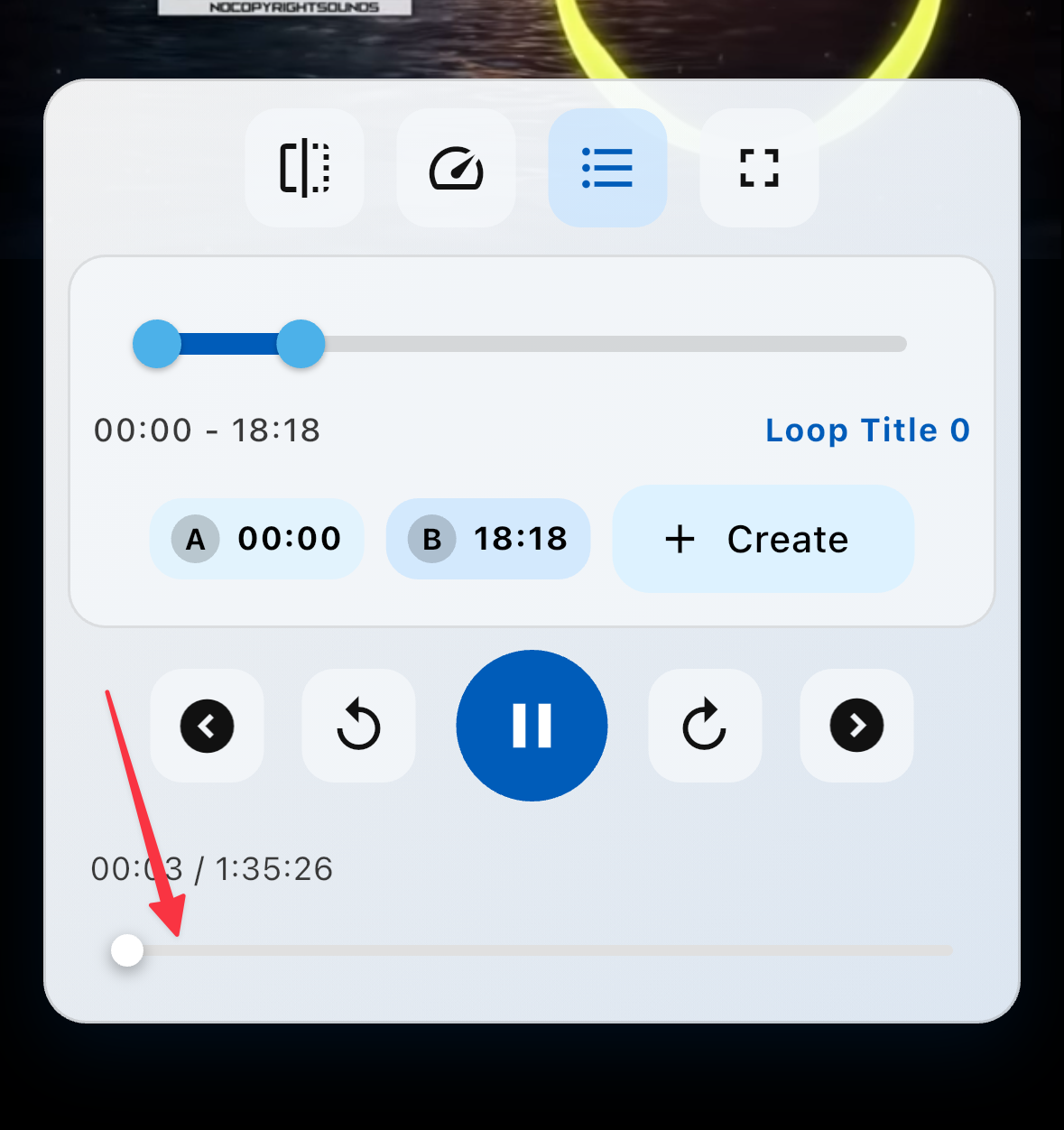
Loop Controls
Play the item and move to the segment you want to loop, then tap on 'Create' to create a loop.
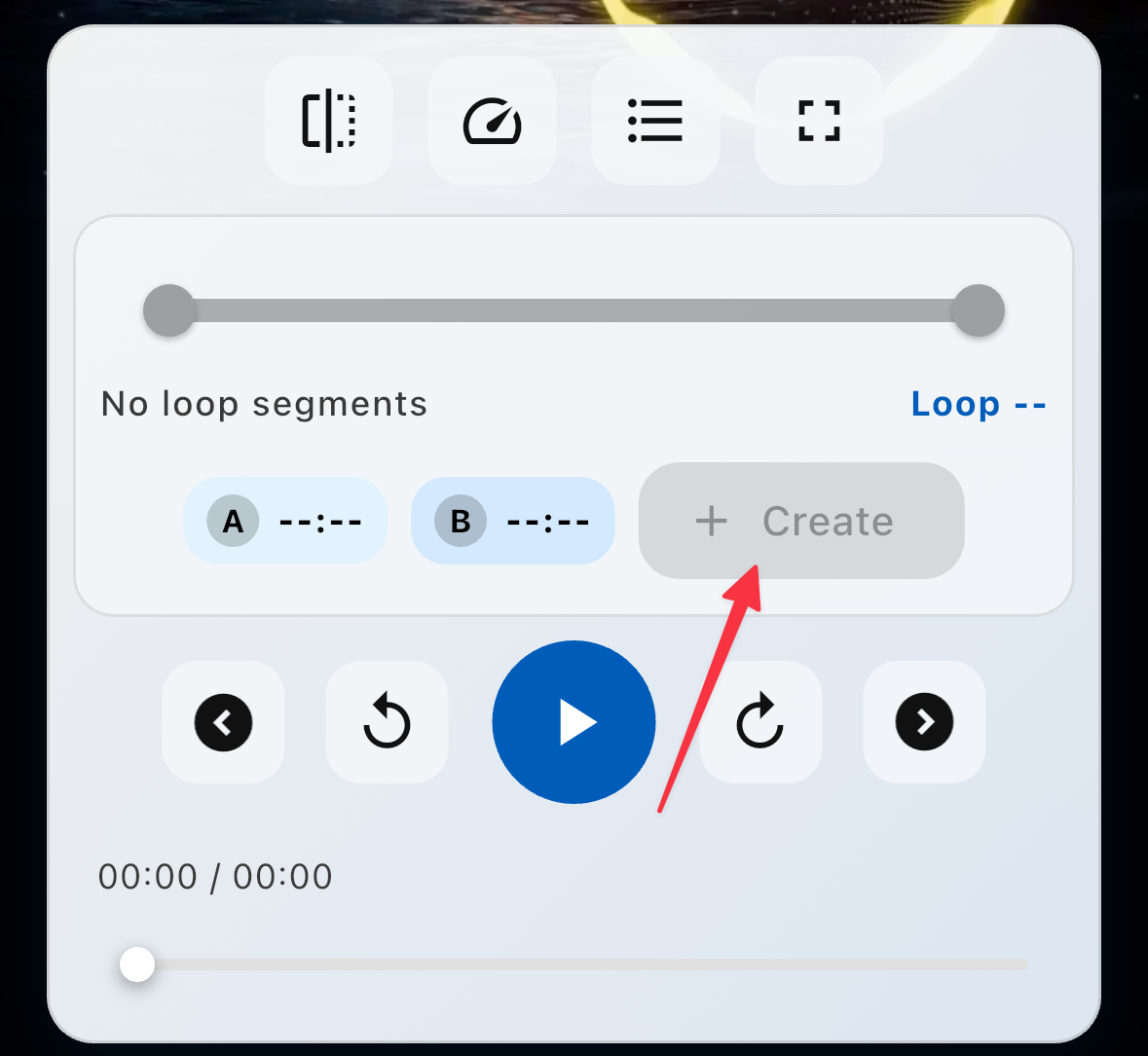
You can adjust the start and end positions of the A-B loop using sliders.
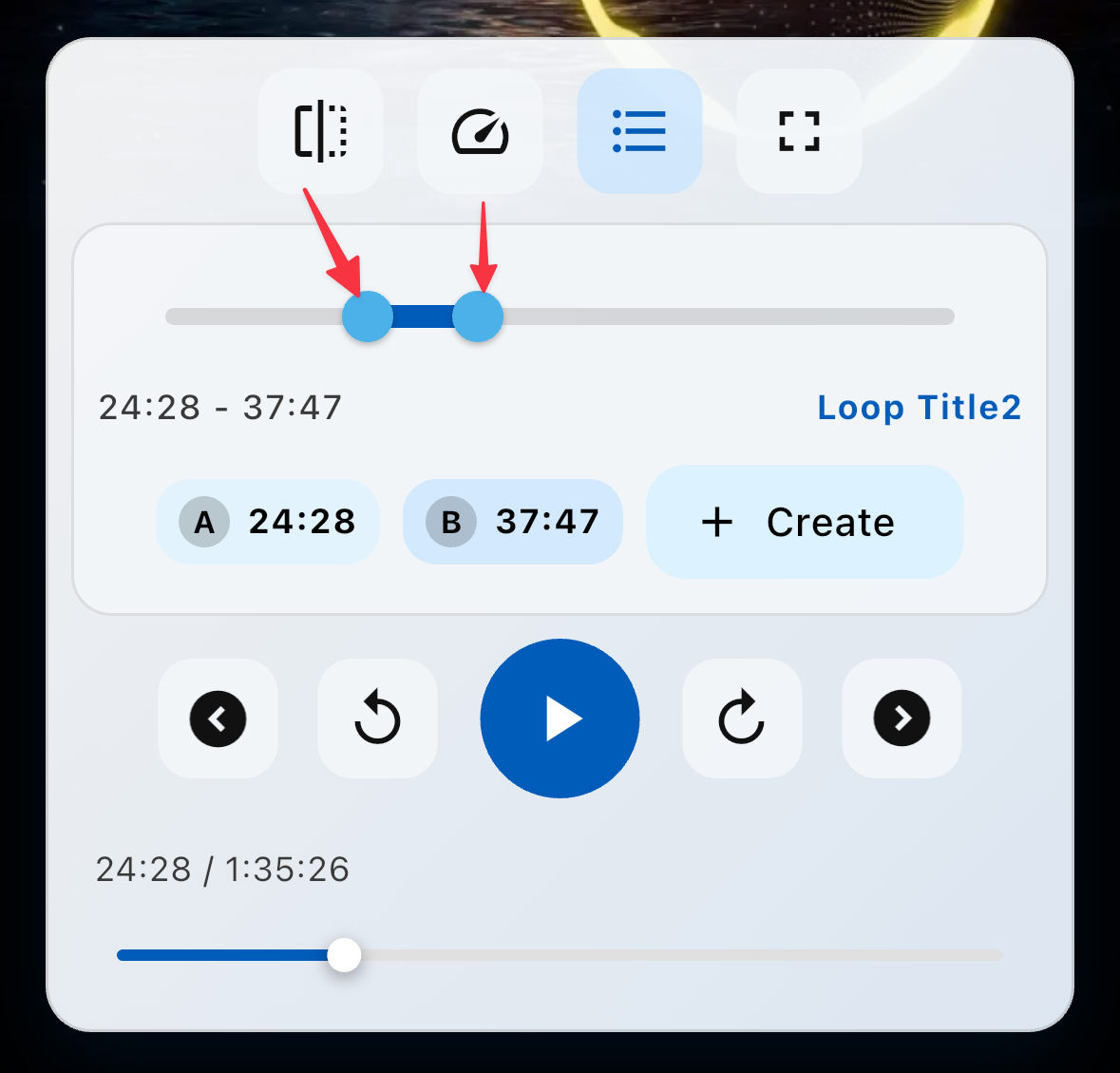
Tap on the loop list icon to display the loop list.
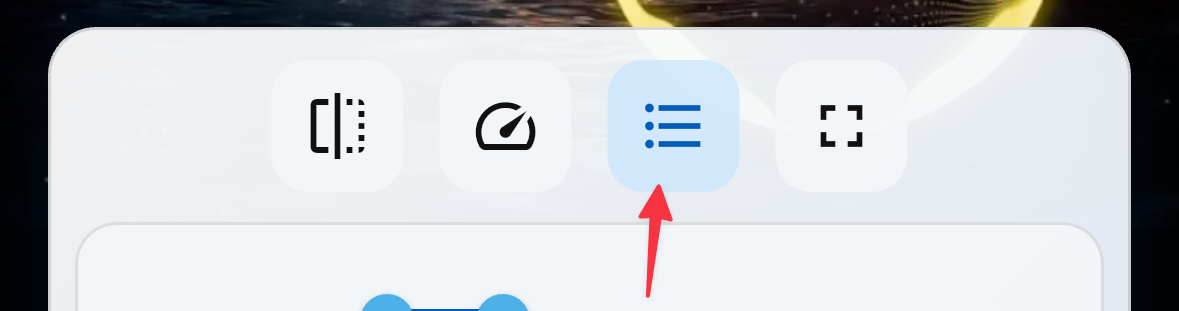
Selecting a loop from the loop list will start playing that loop.
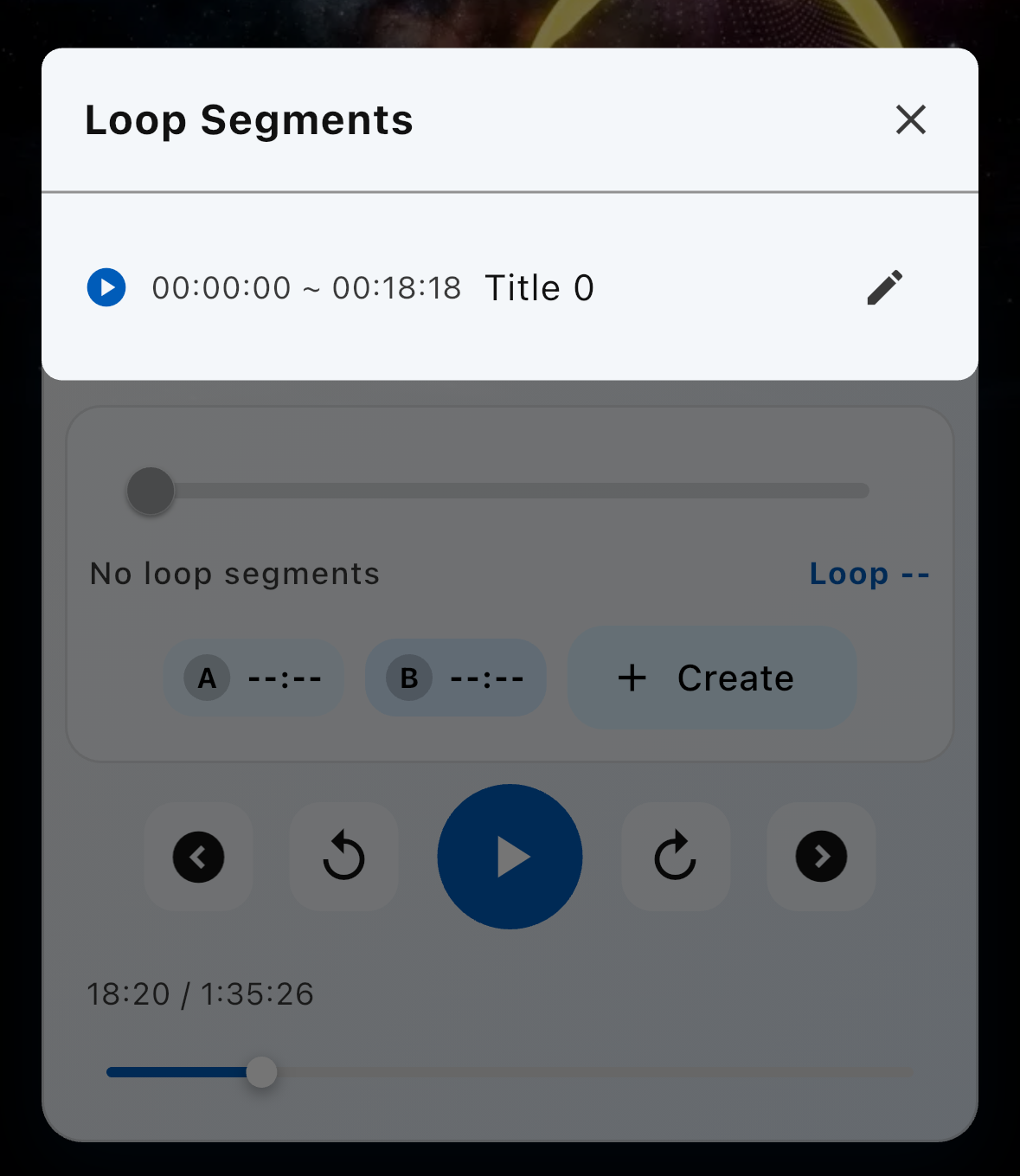
Tap on the pen icon of the target loop in the loop list to edit its start and end positions and title.
Swipe left on the loop which you want to delete in the Loop Segments list. A confirmation dialog will appear.
Playlist Guide
Tap on the 'folder' icon on the right side of the screen, enter a playlist name, and create it.
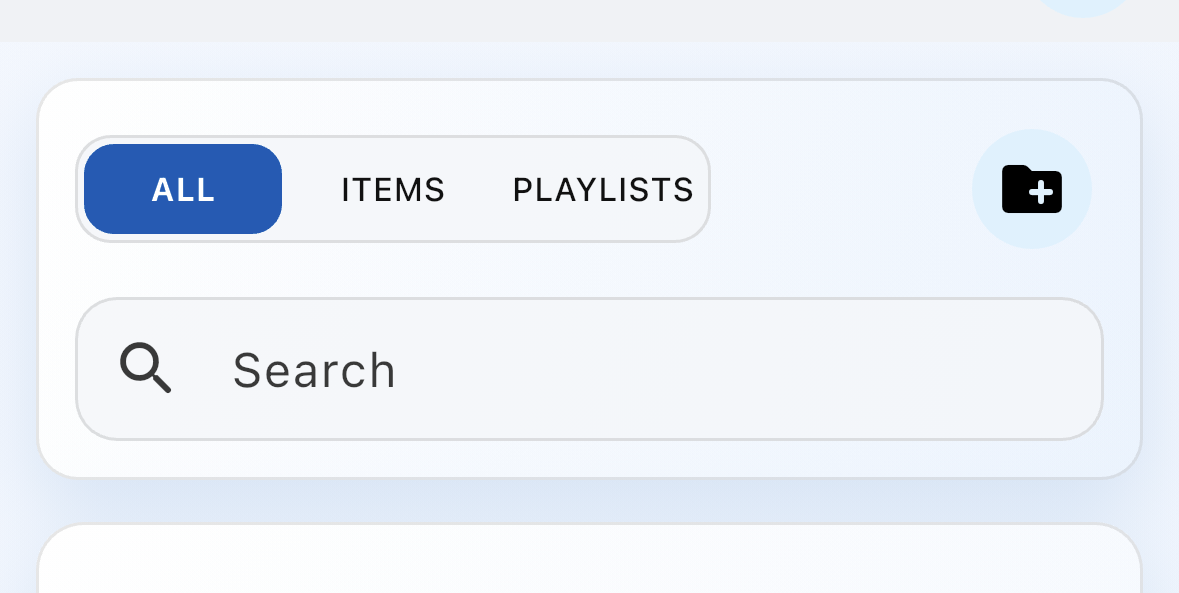
Long-press a playlist and select 'Edit Playlist' from the menu to edit the playlist name and other details.
Long-press a playlist and select 'Delete' from the menu. Deleting a playlist does not delete the items within it.
Report Guide
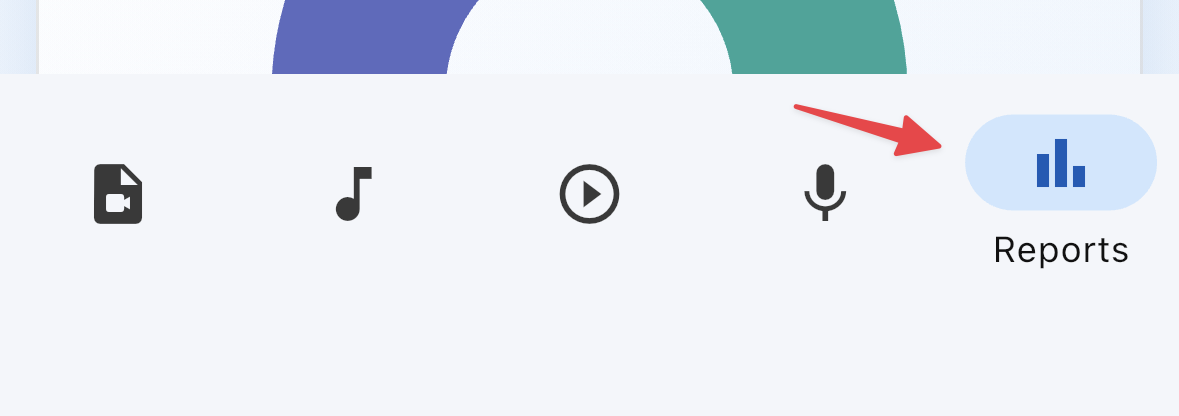
Tap on 'Reports' to navigate to the Reports Screen.
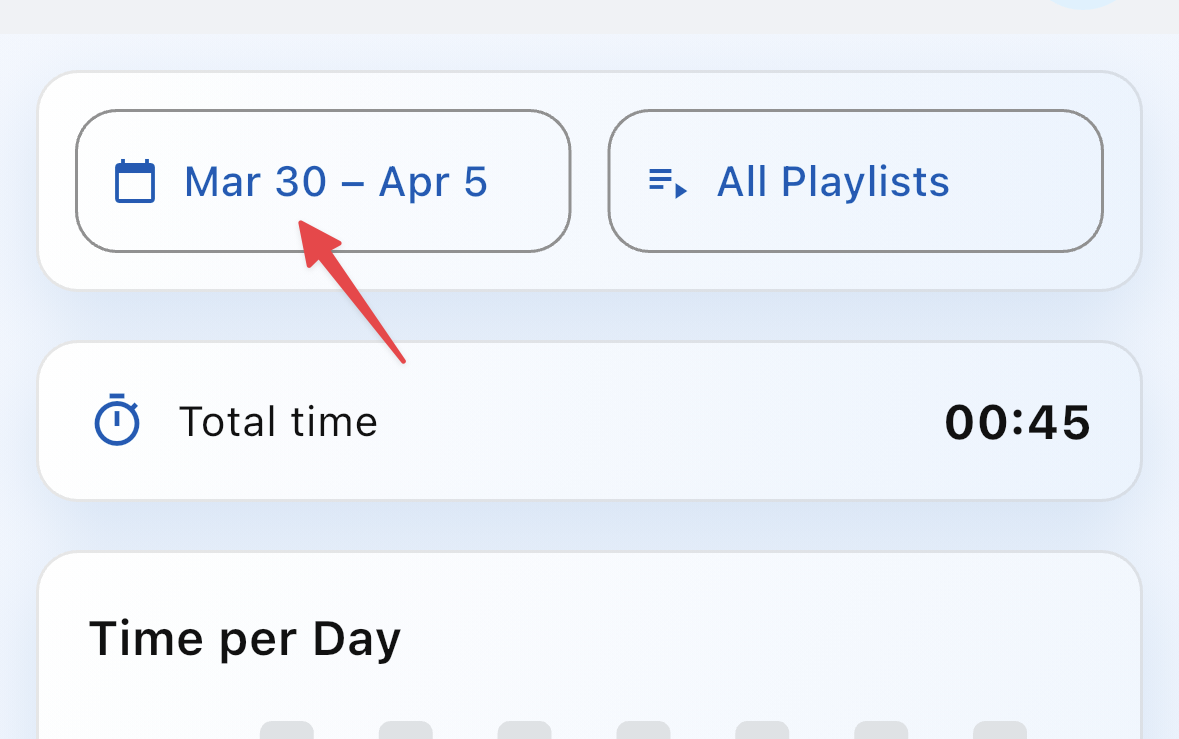
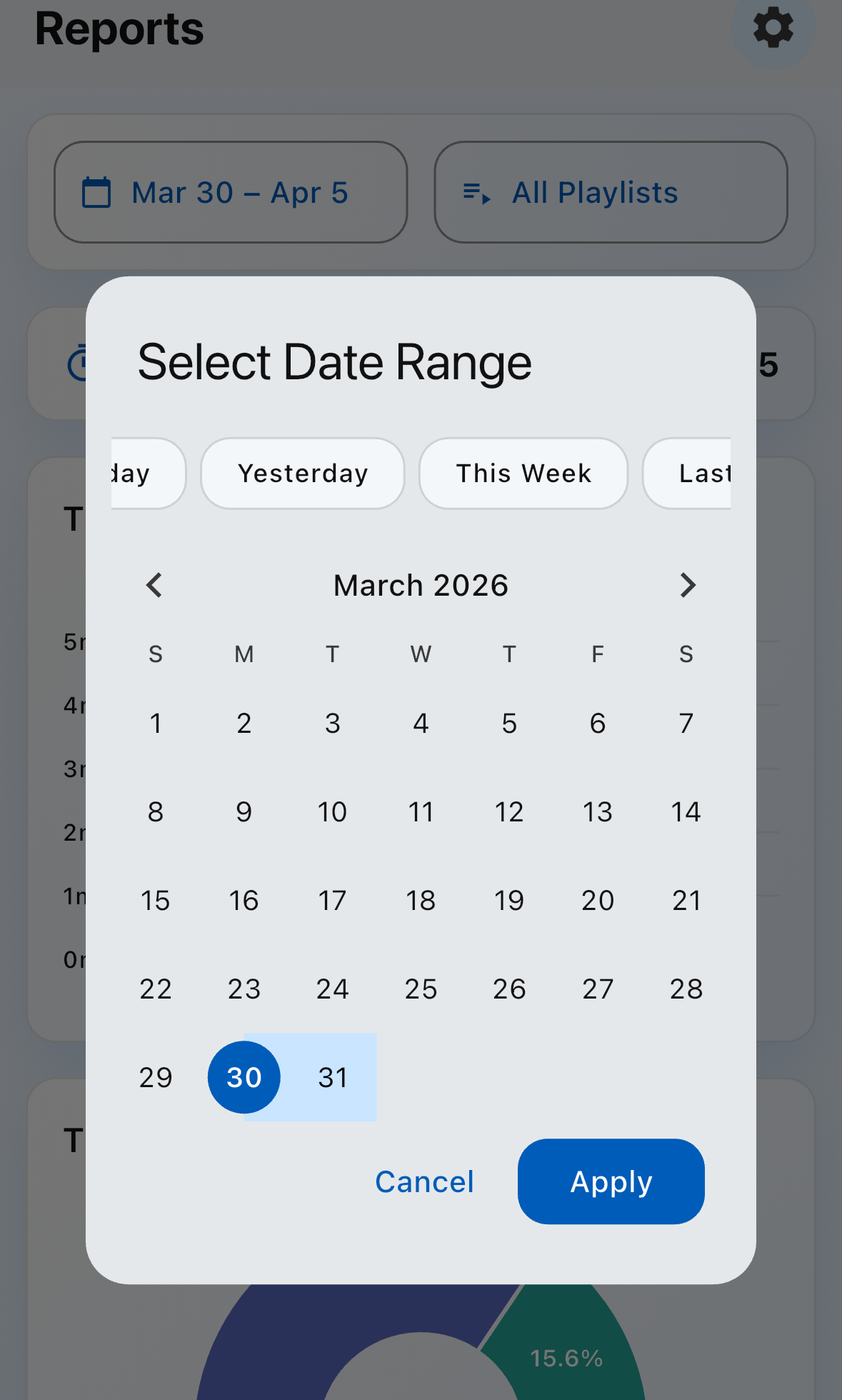
You can change the date range. Tap on 'Select Date Range' to open the date range selection dialog.
Select a date range from the dialog.
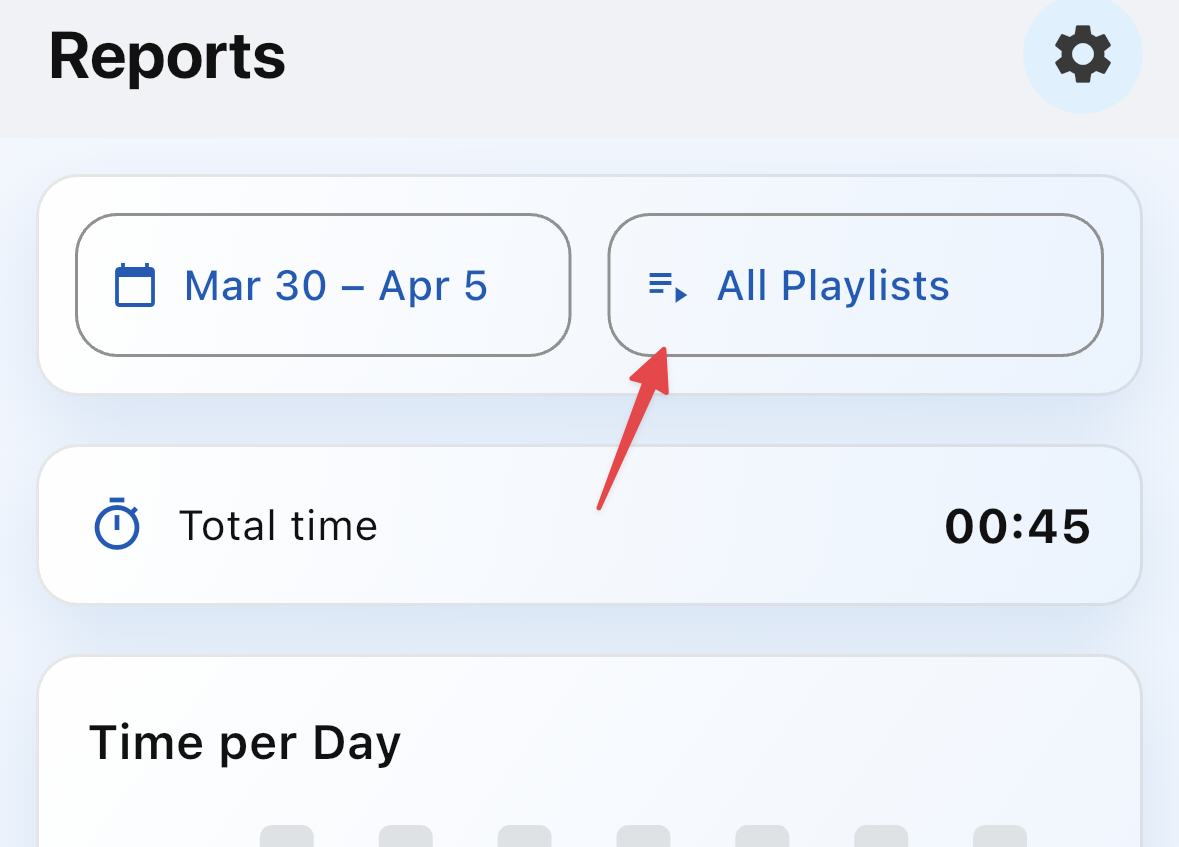
Tap 'Select Playlists' and filter by 'PLAYLISTS'.
Settings
Tap on the 'Gear' icon in the top right of the screen to open the settings menu.

From the settings menu, select 'Basic Info' and tap on 'Language' to change the language.
From the settings menu, select 'Basic Info' and tap on 'Time Zone' to change the timezone.
From the settings menu, select 'Basic Info' and under 'Player Global Settings', change the default 'Seek forward (seconds): ' and 'Seek backward (seconds): '. These can be overridden individually in Item Settings.
From the settings menu, select 'Payment'. On the 'Payment' screen, click on 'Subscribe' to subscribe to PraLoop Premium and remove ads.